
PPM schedules are automatically set up according to asset type. Just by creating an asset, the PPM schedule will be created and jobs will appear on the handheld devices. Engineers can find due tasks on site just by syncing the correct location.
It is also possible to set up a new, custom PPM schedule to your own specifications. Select ‘Pre Planned Jobs’ from the ‘Jobs-Issues’ dropdown menu.
The page will list all your current custom PPM schedules. Automated PPM schedules will not be listed here.
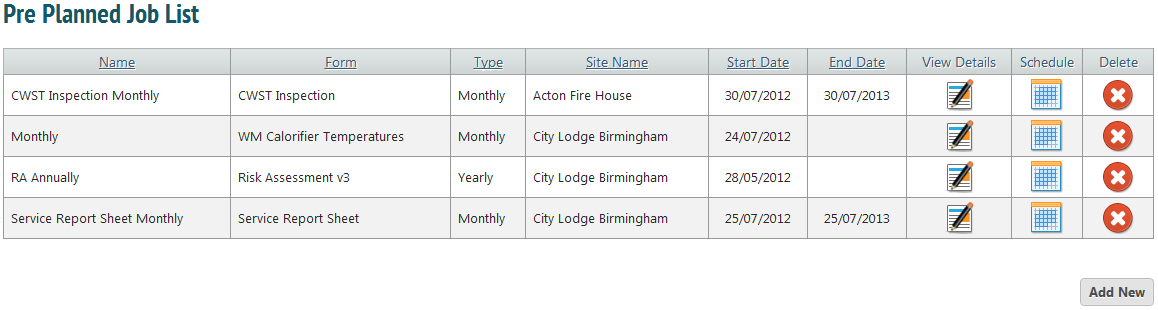
Clicking the ‘Schedule’ icon will take you to a list of all scheduled tasks driven by that PPM schedule. To edit specific scheduled tasks, rather than all at the same time, click the ‘Edit’ icon next to the appropriate job.
To create a schedule of pre planned maintenance jobs, click ‘Add New’. This will take you to the Main Details page. Clicking the ‘View Details’ icon will also take you to this page, but it will be populated with information about that PPM schedule.
Main Details
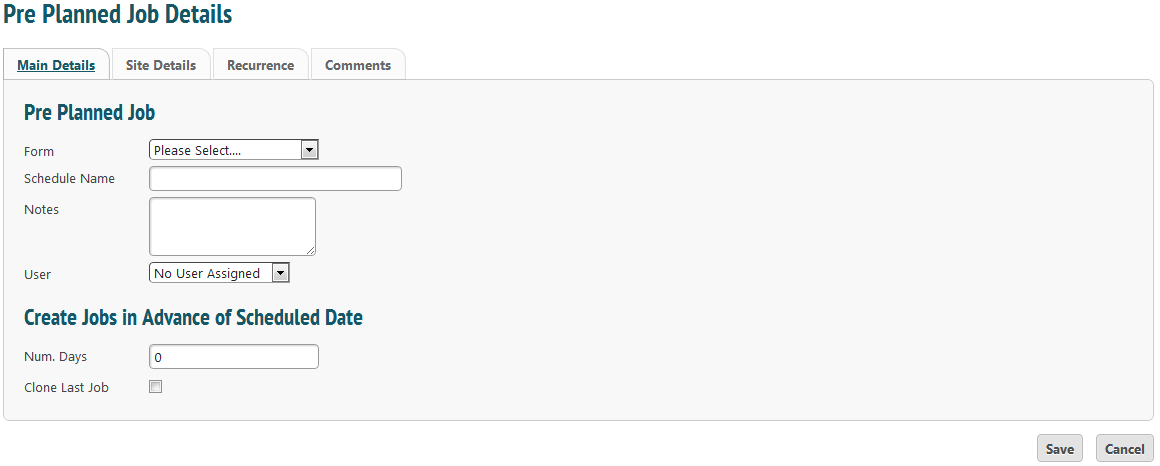
Choose the form to be associated with the schedule, choose a name for it and include any notes to engineers. ‘User’ can be left blank or a user can be assigned. If a user is assigned to the schedule, jobs will automatically be created on that engineer’s device. If left blank, the job will be created but will not be automatically allocated out.
‘Create Jobs in Advance of Scheduled Date’ indicates how many days before the scheduled date the job will be created. If 7 is entered, the job will appear on the mobile device a week before it is due to be completed. This is useful for giving engineers notice of upcoming jobs.
‘Clone Last Job’ means information from the previous job will be pulled through. Ie, a monthly task could be performed on 1st of June. When it is next performed on 1st July, June’s answers will be populated onto the form and the engineer may check and change as appropriate.
Site Details
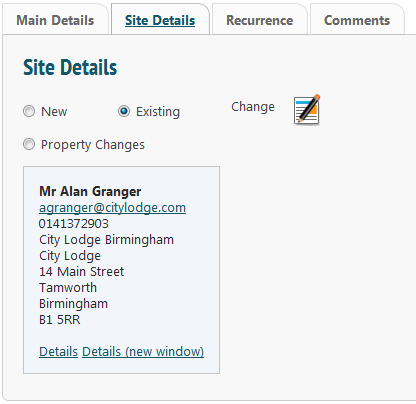
Choose a site to associate the job with. ‘Property Changes’ will allow the job to be allocated to a specific site when it is created as per the schedule.
Recurrence
The recurrence pattern is how often the job will be created.
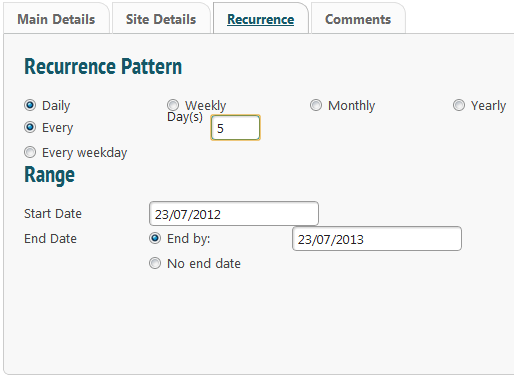
Choosing ‘Daily’ allows for a recurrence pattern of a set number of days. This is useful for tasks that need to be performed often. In the example above, the job must be done every 5 days, regardless of whether the day is a weekend. Selecting ‘Ever weekday’ will create the task every week day.
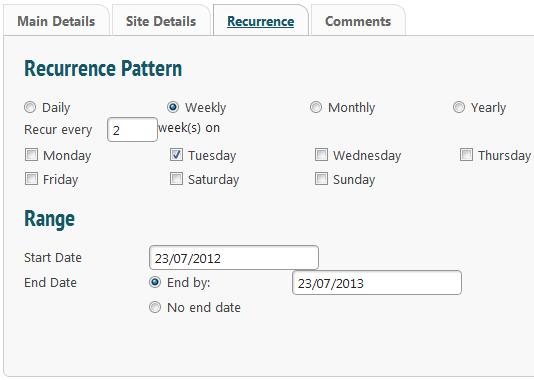
Choosing ‘Weekly’ sets the recurrence pattern in weekly increments, so this could be every week, every 6 weeks or every 12 weeks (for example). In the picture the pattern is set to every 2 weeks on a Tuesday.
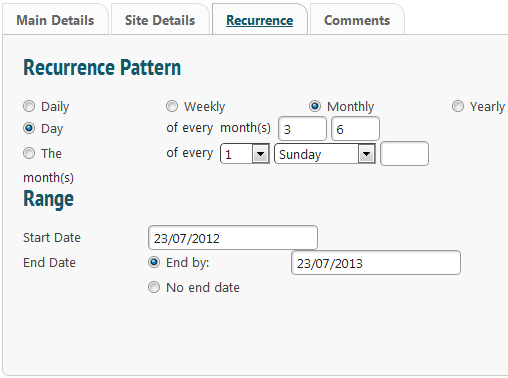
‘Monthly’ allows for a recurrence pattern set in months. In the example above the job schedule is for every 6 months, on the 3rd day of this month. It can also be set for the 1st-4th Monday- Sunday of a month.
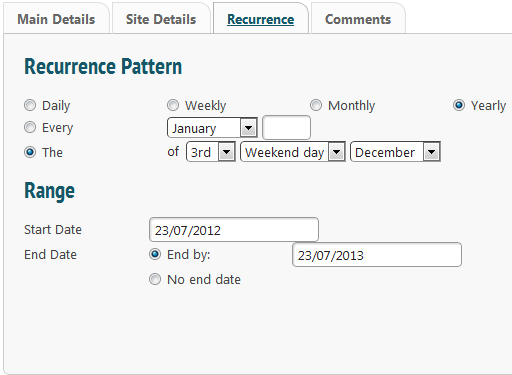
‘Yearly’ would be used for an annually recurring task.
The ‘Range’ is the start date and end date. If the schedule does not have an end date select ‘No end date’ and jobs will be created indefinitely.
Comments
Comments are used to make comments or notes about a particular schedule.