
An engineer does not have to already be assigned a job in order to complete it. The engineer can see due tasks on the mobile device, choose to complete them and then sync the completed job back to the web system.
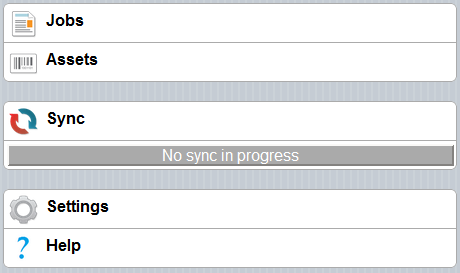
The first time the engineer uses the mobile application, they should press the ‘Sync’ button. The first time this is done it will pull down information about sites and locations from the web system. This information will then stay on the device.
To find assets (and due tasks) for a particular site:
- Select ‘Assets’.
- Select ‘Places to sync’.
- Select the client.
- Select the site. It is possible to keep going to the bottom level; to a particular room of a specific floor.
- Press the check-box to select which sites, locations or rooms are to be synced. You may choose to sync all assets for all clients or only one room’s worth. The amount of assets you choose to sync will affect the syncing time.
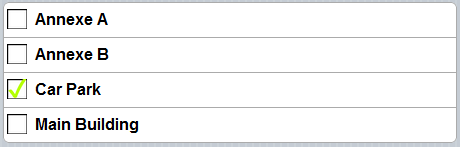
- Go back to the main menu. Press the ‘Sync’ button.
- When the device has synced, go to the ‘Asset’ menu again. Select ‘Assets and what’s due’ and you will see all the assets that have been synced to the device.
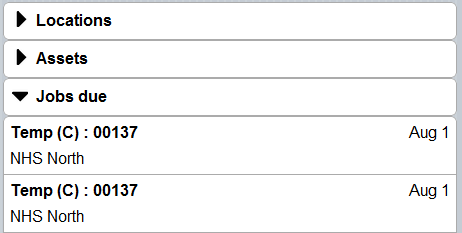
- To begin a job, select one of the tasks. A green ‘Start’ button will appear. Press this button and the job will open up. It can now be completed as normal.