
New jobs can be created in a variety of ways.

- Select ‘New Job’ from the drop-down menu. This option creates a job that is not specific to an asset. This could be an instruction to visit a site or a reactive job.
- Select ‘New Job- Asset’ from the drop-down menu. This option creates a job relating to a specific asset.
- ‘Pre Planned Jobs’ allows the creation of scheduled recurring jobs.
- Tasks can also be created on the handheld device. This option is helpful for completing L8 tasks on a specific site.
New Job

When ‘New Job’ is selected from the ‘Jobs- Issues’ menu, you will see the page above.
- Choose your client from the dropdown list. You can also add a new client if need be.
- Choose a site from the dropdown list. Only sites associated with the selected client will be available. You can also add a new site if need be.
- Choose a form to be completed from the dropdown list. This is a list of all forms on your system and are not client-specific.
- Fill in the date and time. These will be automatically filled with the date and time of creating the job, but can be altered.
- Ensure ‘Allocated Time’ is correct. This can be altered.
- Enter any notes for the engineer. This can be anything you want, and can also be left blank.
- Allocate the job. The job does not have to be allocated when it is created, but will not appear on an engineer’s handheld device until it is allocated. This can be useful if you have a task due for completion but are unsure about which engineer will be free.
- Select a category. This is not mandatory but may be useful to indicate level of importance to the engineer.
- Enter any additional comments you may have for the engineer. This can also be left blank.
- Press either ‘Add Job’ to save and create the job or ‘Cancel’ to start again.
To create a job for a new client select ‘Add New Client’ from the Client dropdown list.

This will allow you to enter details for a new client. To add a new site (associated with either a new or a current client), select the ‘Add New Site’ option from the Site dropdown list.

Fields marked with an asterisk * are mandatory and must be completed. You can either copy site information from Client Details or enter information about a different site.
New Job- Asset
Creating a new job on a specific asset is achieved in the same way, with the addition of the asset field. Choose an asset from the dropdown list. Only assets on the selected site will appear in this list.

Pre Planned Jobs
Tasks can be created an allocated on a prescribed schedule on a recurring basis. Details of pre planned jobs can be found by selecting ‘Pre Planned Jobs’ from the ‘Jobs- Issues’ menu. This will show you a list similar to the one below.

To create a new schedule, click the ‘Add New’ button.
You will see this screen:

Choose which form will be attributed to the job, enter a schedule name, any notes for your engineer and allocate the job. If a user is selected, this user will always be allocated this job. If no user is selected, the job will still be created and can be allocated at the time.
The job will be sent to the engineer’s handheld device on the date it is due to be completed. Otherwise, you may choose to create it in advance of the due date. In the example, the job will be created and sent to the engineer’s handheld device 7 days before the task is due to be completed.
Selecting the ‘Clone Last Job’ option will automatically fill in answers from the previous job in the new form. Ie, the engineer completes a job on May 25th. The answers from this job automatically populate the form the next time an engineer completes the same task on June 25th. It may be useful for the engineer to be able to see information collected previously, though this is optional. If the box is not selected, the form will remain blank.
The job must have details about a site. The various options are to enter details for a new site by selecting the radio button, to select from a list of existing sites or to select ‘Property Changes’.
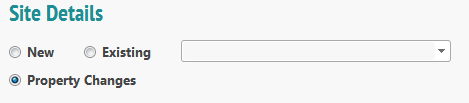
To create a schedule of Pre Planned Jobs, you will also need to set the recurrence schedule. To do this, select the ‘Recurrence’ tab.
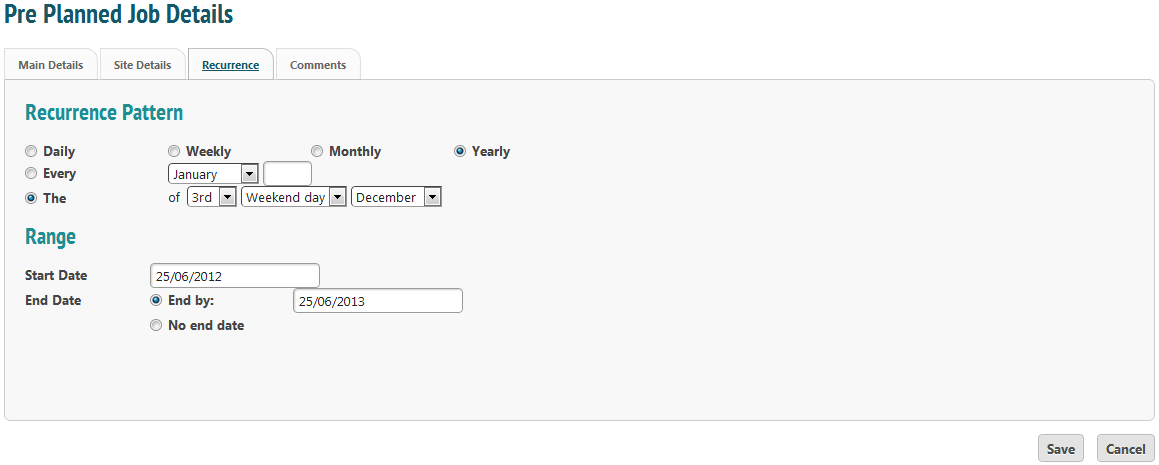
The recurrence pattern can be set to whatever you need.
- Select ‘Daily’ to enter a recurrence pattern days apart. This could be every day or every 10 days or every 100 days. You can alternatively select ‘Every Weekday’.
- Select ‘Weekly’ to enter a recurrence pattern weeks apart. This could be every 2 weeks or every 20. You also have the option to select which day the job will be allocated on- every Tuesday and Saturday, for example.
- Select ‘Monthly’ to set a recurrence pattern months apart. There are two options: select ‘Day’ to set a recurrence pattern of every 6th day, every 7 months (as an example). This would look like this:

Or on the 1st Friday, every 3 months. This would look like this:
From this tab you can also set the range. This is the start and end date of the schedule. You can also choose to have no end date. This means jobs will continue being created on this recurrence schedule until you manually stop them.
The next tab is a ‘Comments’ section that allows you to add comments that will be sent every time a job is created from the schedule.
Finding Due Tasks on the Mobile Device
Please see the help page for discovering and completing due tasks on a mobile device.