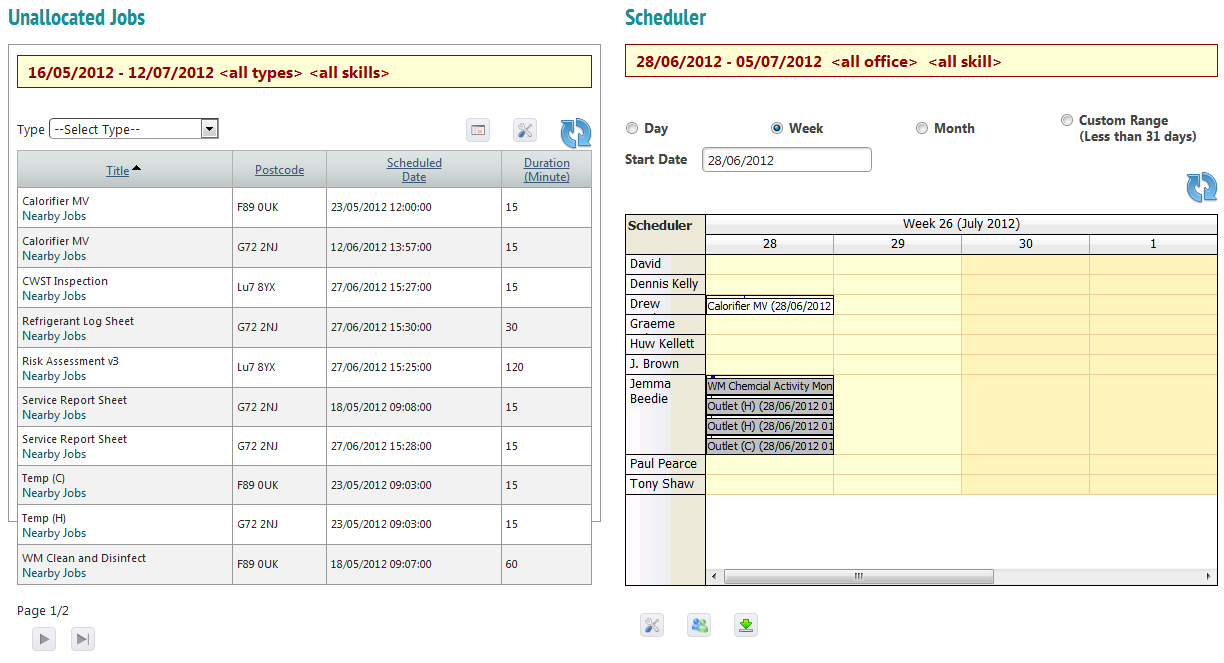
The resource planner helps admin staff to view all diaries on one page, along with unallocated tasks. From here it is easy to allocate or reallocate jobs or block off occupied time.
- You may view diaries by day, week, month or between two custom dates.
- Allocated jobs will appear on each engineer’s row.
- Unallocated jobs appear on the left hand side. To allocate a job, drag and drop it onto the engineer’s row.
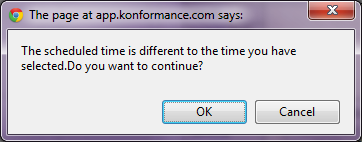
- If you are trying to allocate it for a different time or date than scheduled for when the job was created, an error message will appear. To continue with job allocation, press ‘OK’.
 It is possible to filter the unallocated tasks and engineers displayed by skill set. For example, a risk assessment must be assigned to a risk assessor. To filter by skill set, click the ‘Resources’ button:
  A window will appear.
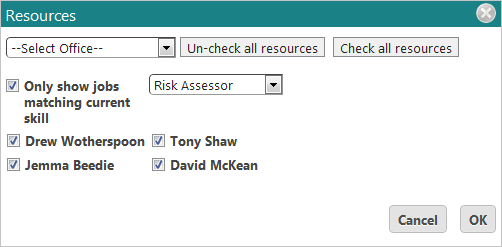 Check ‘Only show jobs matching current skill’ and then choose a skill from the drop down menu. Only engineers with this skill will be listed in the window. To select which engineers’ diaries you want to view in the planner, check the box next to their names. Alternatively click ‘Check all resources’.
The resource planner will only show jobs and engineers that fit this skill.
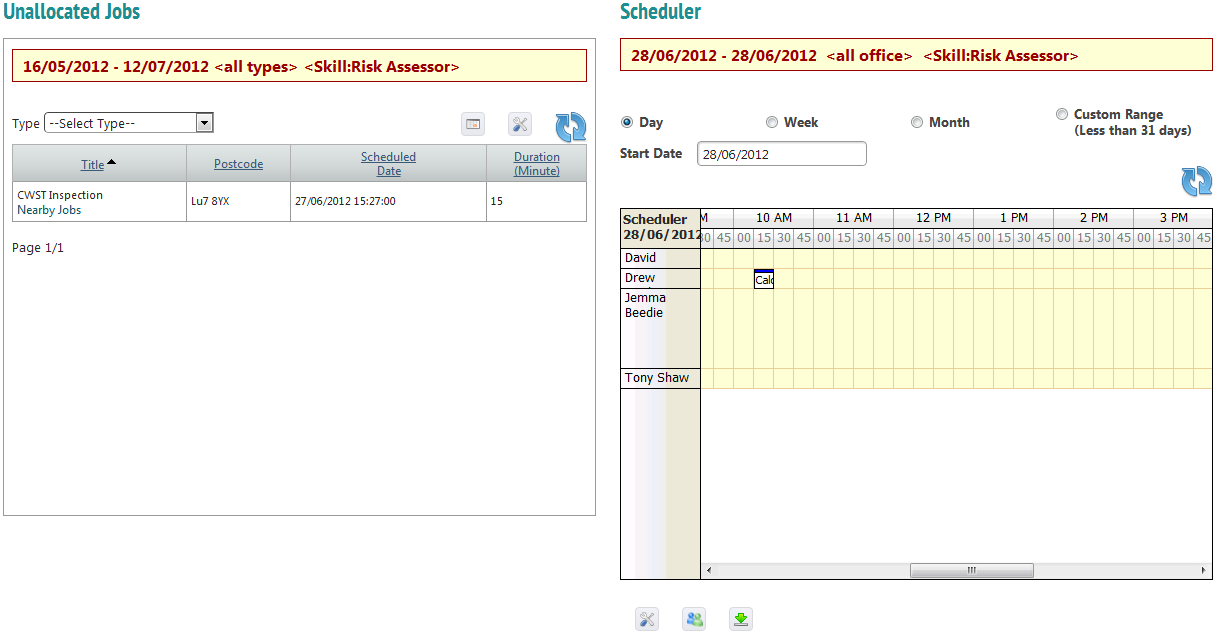 Clicking the ‘Export’ button:
  will create a .png file (an image that can be opened in MS Paint) ready to print. This gives you the option of giving your engineers printed schedules, though jobs they have been allocated will arrive on their devices anyway.
Pressing the ‘Dates’ button:  will allow you to filter unallocated jobs by date. This window will appear:
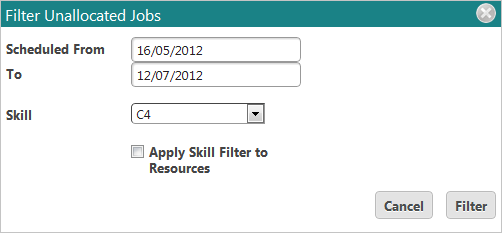
Choose the dates and if you desire, a skill set to filter by. Check ‘Apply Skill Filter to Resources’ and click the ‘Filter’ button. Unallocated jobs will now be filtered to meet these specifications.
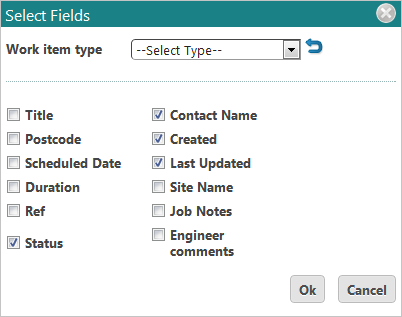
Pressing the ‘Fields’ button:  allows you to choose the details to see about each job. You may choose up to four fields.