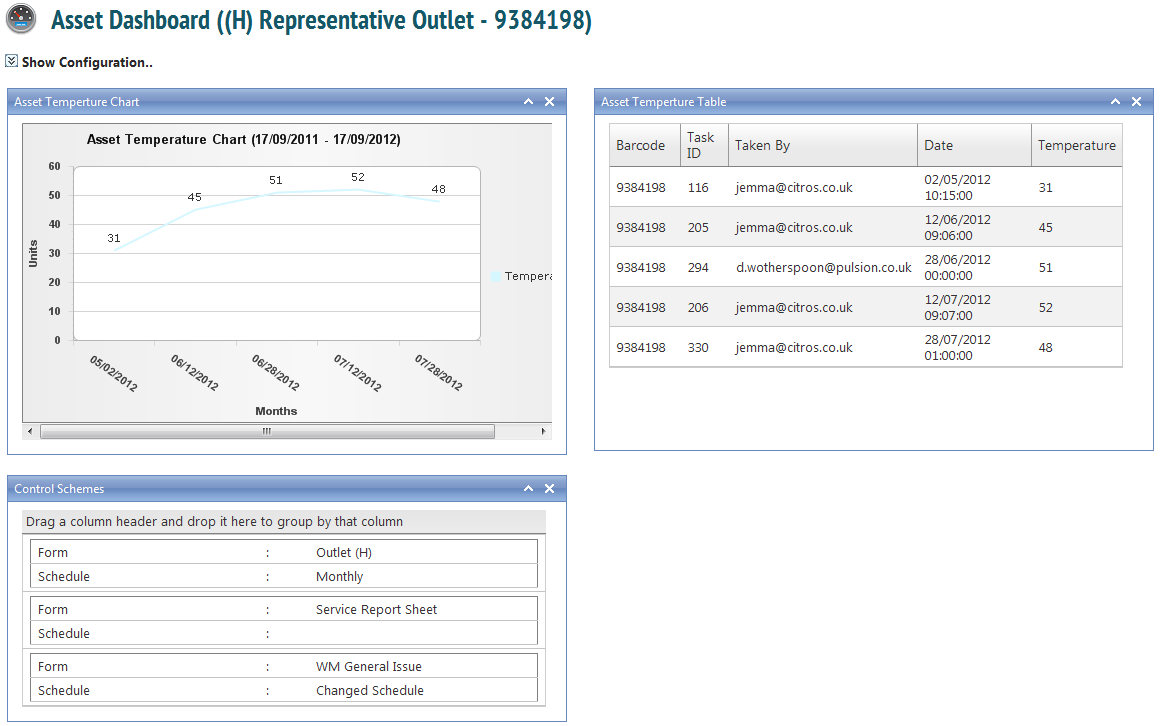
Dashboards are another way of viewing information gathered. You can access dashboards by selecting ‘Dashboards’ from the ‘Administration’ menu. From here, you have control over all dashboards for all of your clients and their sites. Dashboards can be viewed at a client, site and asset level.
The client dashboard displays data collected on the client’s sites. You can choose however many items of data are to be displayed. Your client may also view this information by logging onto the client portal. It allows for a clear and concise display of any useful information, such as details of any non conforming assets.
You client will only see information pertaining to them. You have complete control over what information they have access to, and it is possible for you to view all information ever gathered while your client sees only, for example, information gathered on the most recent job.
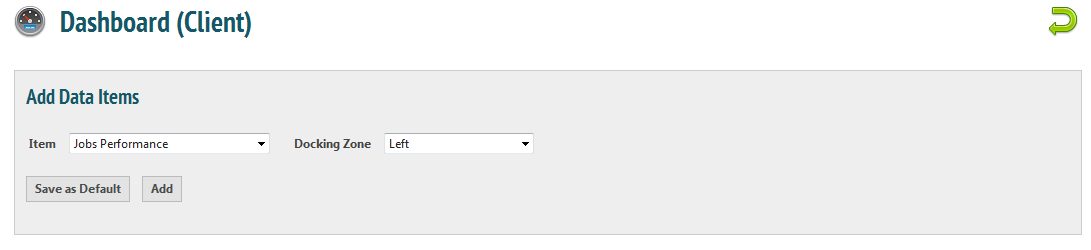
This is the default Dashboard, before you have added anything for your client to see. To add items of data, click the drop-down menu:
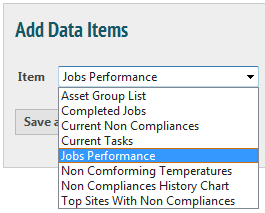
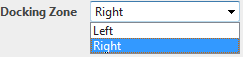
Select an item of data and click  . This will add the information to the dashboard. You may include as many or as few of these items as desired. Items will automatically be added to the left of the screen. You may assign them to the right hand side by choosing this option from the second drop-down menu.
Once you are satisfied with your client Dashboard, it may look something like this:
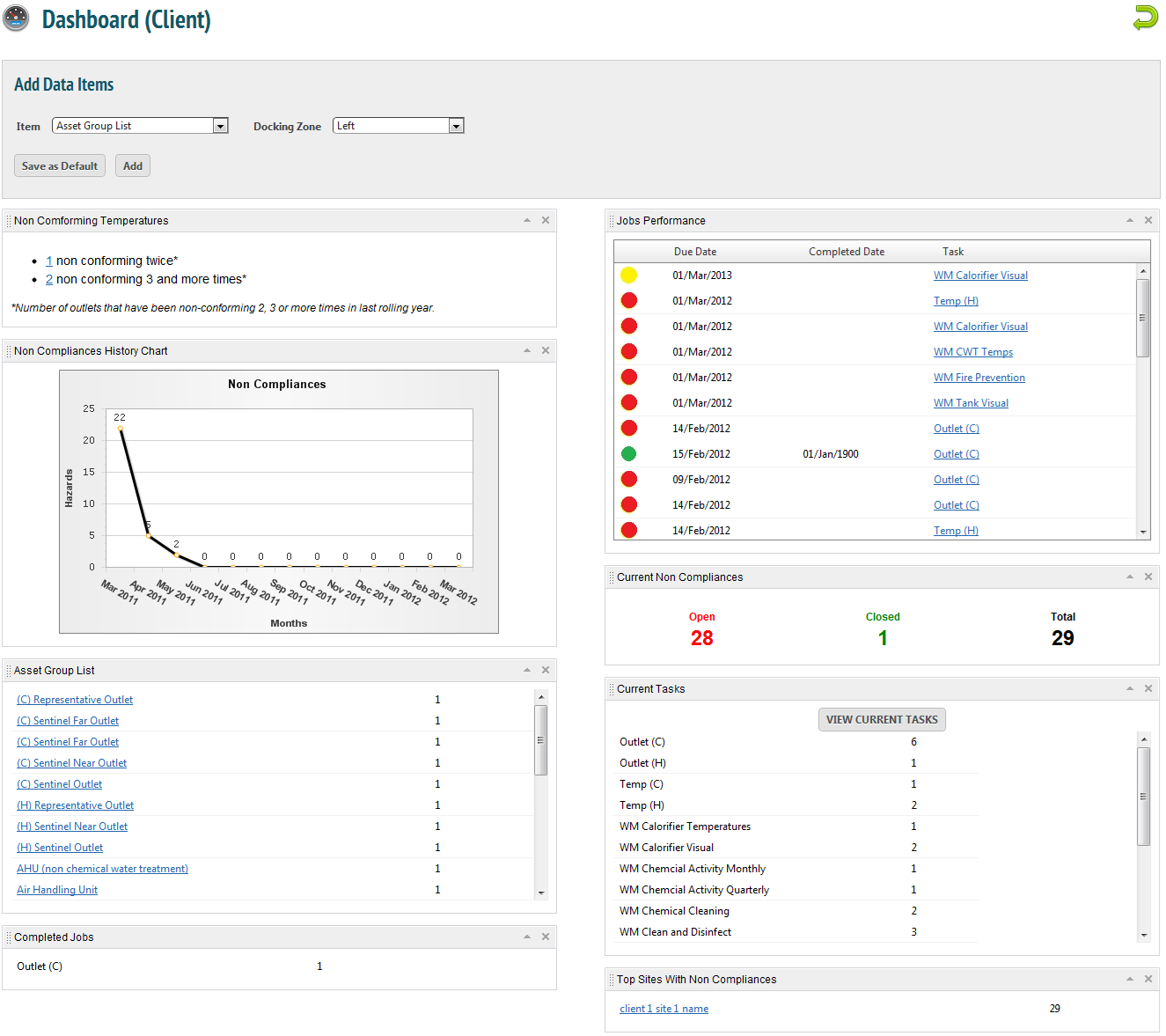
You may also drag and drop these boxes if they are in an undesirable location.
Asset Dashboards
Asset dashboards are slightly different. The display information about that asset. They can be accessed from the asset register by clicking on the dashboard icon.

The asset dashboard can be configured as well, with different information available.