
Details
From the Client-Site dropdown list, ‘Company Details’ is information about your company. Information such as the name, address and contact details can be found here. You will also find a list of users, contacts and other documents.
Users
The ‘Users’ tab lists the registered licence holders within the company by username. It also shows their permission level- Mobile Worker is someone who only uses the handheld device, while Company Administrator has full access.
Information can be seen in more detail or edited by pressing the blue button. 
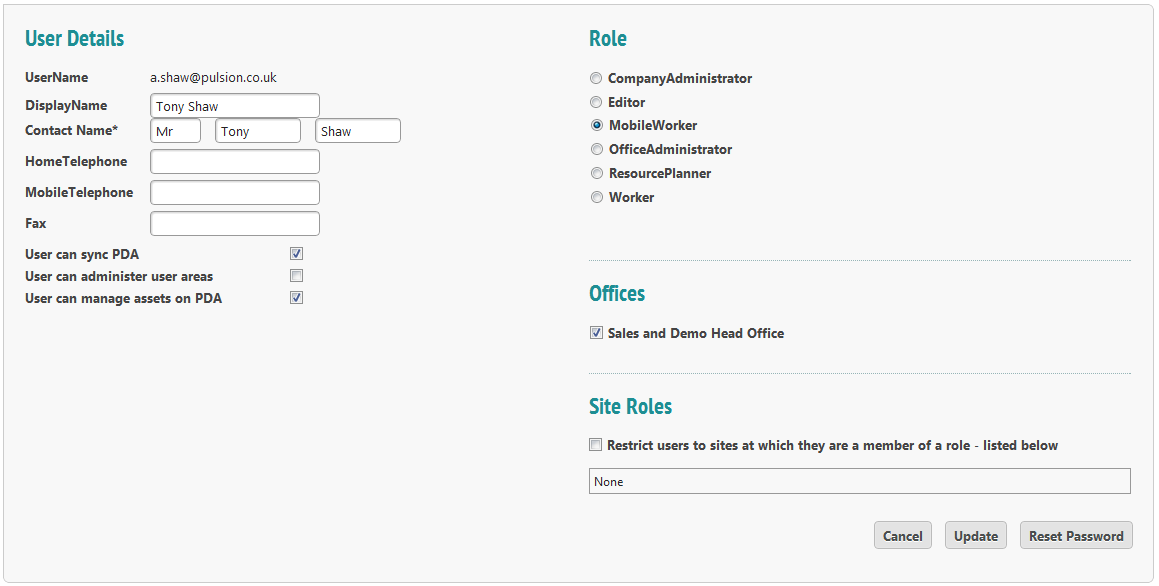
The user’s username cannot be edited, but all other information can be. In the example above, Mr Shaw is a Mobile Worker: he completes jobs on a handheld device. From this page the administrator has the option to change his permission levels.
If the option ‘User can sync PDA’ is unchecked, the handheld device will sync on a recurring schedule. If the option ‘User can manage assets on PDA’ is unchecked, the Mobile Worker will not be able to sync assets and their due tasks to their handheld device.
The list of roles is in order of access level. A Company Administrator has access to all parts of the web system and mobile application including adding and removing users. An Editor cannot add and remove users but will be able to do all else. A Mobile Worker can only log on on a handheld device. We recommend using only these roles, though if you want to grant a member of admin staff access to the system to allocate jobs to engineers and nothing more, it would be useful to restrict them by designating them as Resource Planner.
Save changes by pressing ‘Update’ or discard by pressing ‘Cancel’.
Reset Password
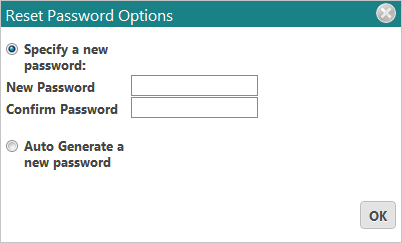
When you select ‘Reset Password’, a new window will open up. Either enter a new password of your choosing or automatically generate a new password. When ‘OK’ is pressed, that new password is saved to the user.
Contacts
The ‘Contacts’ tab details information about