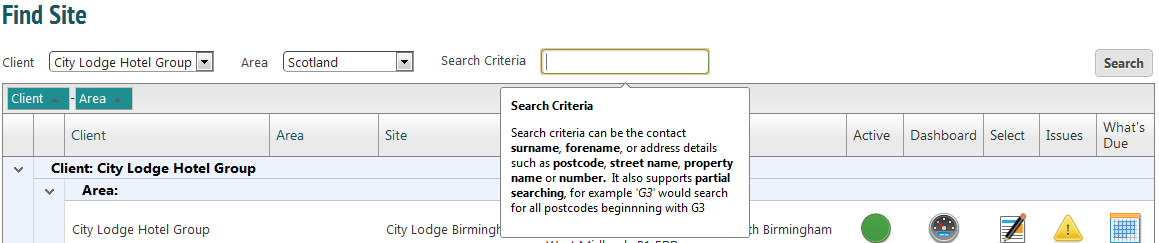
From the ‘Client-Site’ menu, select ‘Search’. This page will list all the sites for all of your clients.
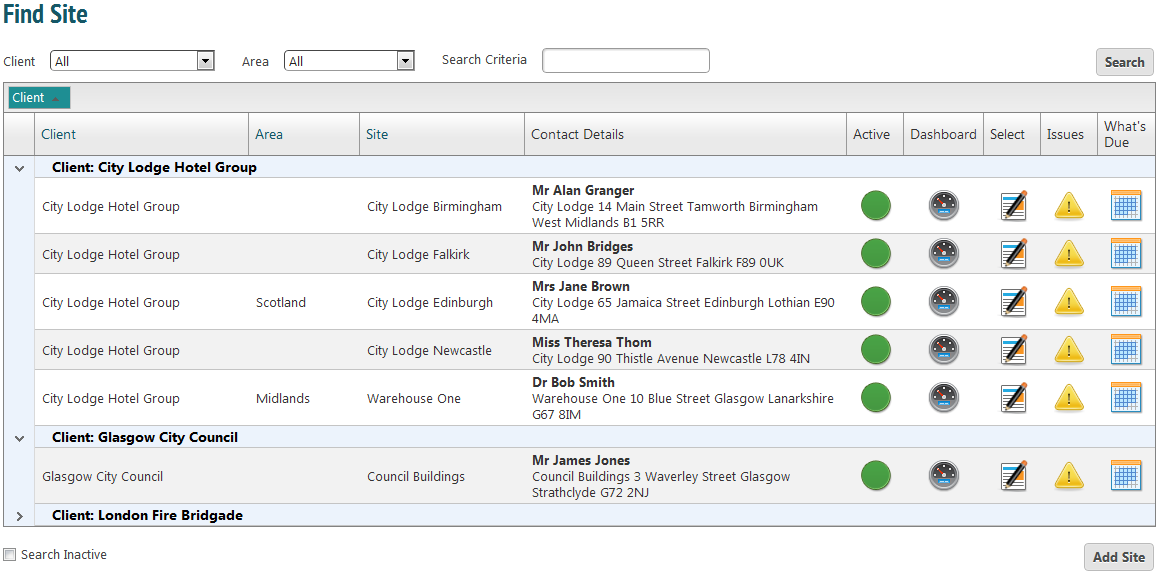
This page is completely searchable. Web system users can choose how they view the site list. The headers at the top of the list can be used to filter the information shown. To see information filtered by one of the headings, just click, drag and drop the heading into the top bar.
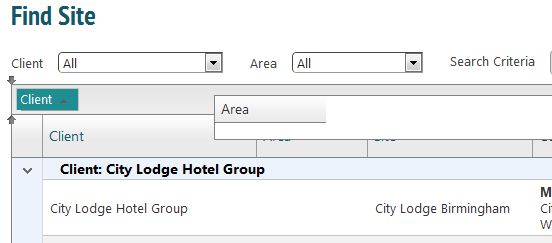
The information will now appear in a tree view, filtered by the chosen criteria. You can continue to add criteria and the information will continue to be filtered in a tree view.
Icons
 Indicates that jobs can be allocated to the site. A red dot indicates that the site is no longer used.
 Clicking this icon takes you to the site dashboard.
 Clicking this icon will take you to site details and allow you to edit information.
 Clicking this icon will take you to a list of non conformances on this site.
 Clicking this icon will take you to a list of due tasks.
Search Fields
You can also search for a site using the fields at the top of the page. This is especially useful if you already know the name of the site you are looking for.