
Device settings, such as how often the device will automatically sync, can be controlled. This option means the human element (having to press the ‘sync’ button) is removed and allocated tasks will always be synced to mobile workers’ devices.
Select ‘Device Settings’ from the ‘Administration’ dropdown menu.
Synchronisation
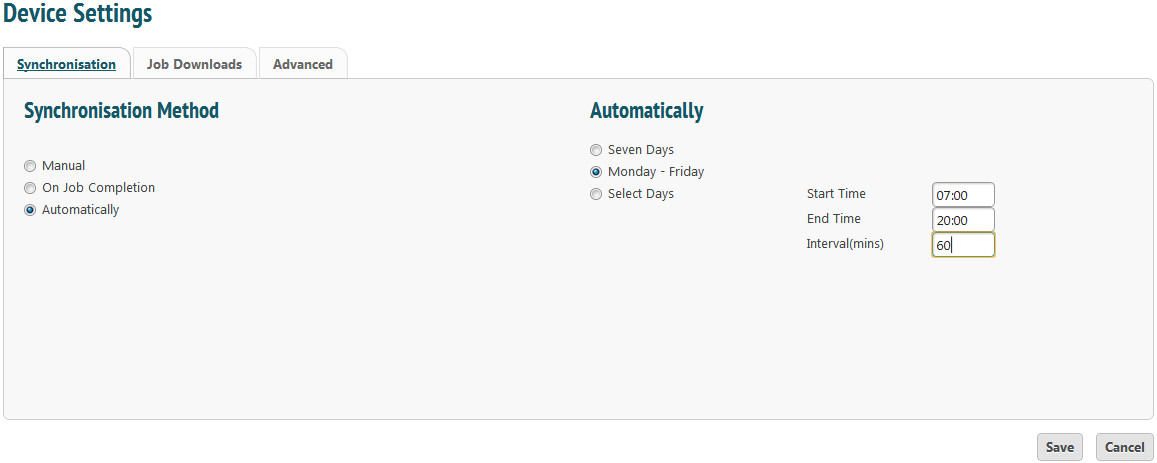
Windows 6.5 devices: Selecting ‘Manual’ means the engineer must press the sync button. Selecting ‘On Job Completion’ means the device will sync each time a job is completed. Selecting ‘Automatically’ gives you the option to set which days and times the device will sync.
In the example above, the device will sync every hour of every weekday from 7am to 8pm.
Android/ iOS devices: Selecting ‘Automatically’ will instruct the device to sync at a set interval of your choosing, but it will not have a start or end time. It will just keep syncing from when the application is started. I.e. if you set the interval to hourly and start the application then the device will sync every hour, 24 hours a day, 7 days a week from then on.
Job Downloads
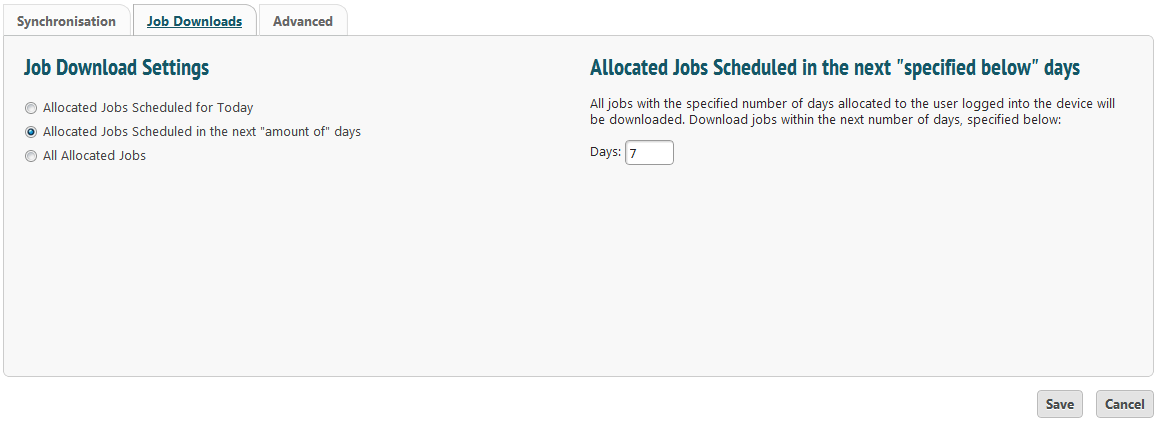
From here you can choose how many jobs are synced to devices. To send only jobs allocated for the current day, select the first option. In the example above, allocated jobs to be done in the next week will be synced to devices. You can also choose to sync all allocated jobs, no matter if they are due today or in three months.
Jobs will still appear in chronological order of when they are due to be completed on the device.
Be sure to click ‘Save’ when you have finished making changes.