
This is a two level save. That means you must click the tick button for each individual asset and the save button when you have added all of your assets.
Select ‘New’ from the ‘Asset Register’ dropdown menu.
Choose the client and site to associate with the asset. If it’s a brand new client or a new site, you can input details here by clicking the ‘Add New Client/ Site’ button.
When you have selected a client and site, a list of all of that site’s assets will appear.
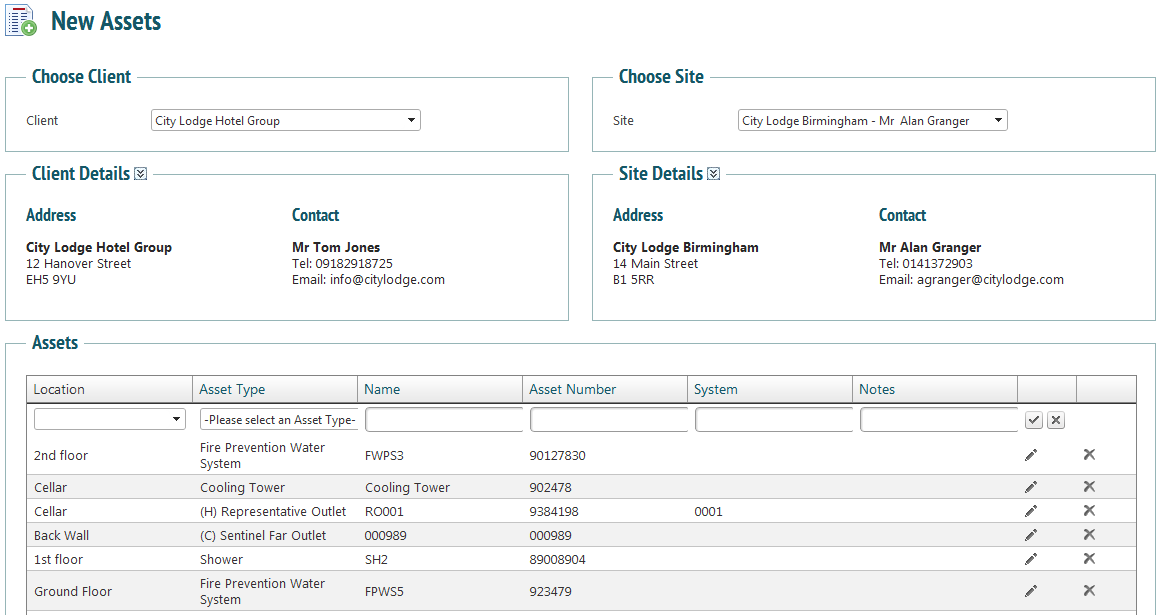
- Choose a location from the dropdown menu or enter a new one.
- Select an asset type.
- Give the asset a name. If you do not give it a name, the name will automatically be the same as the asset number.
- Give the asset a number- this should be the barcode if you are using them. You must give the asset a number.
- Give the asset a system if you are using them.
- Enter any notes.
- Click the tick icon.
 This is the first level of saving assets.
You may add as many assets as are needed at this stage. When you have finished adding assets, click the ‘Save’  button at the bottom of the page.
PPM schedules are associated with asset types and will automatically begin being scheduled from the asset’s creation date.