
From the ‘Asset Register’ menu select ‘Search’.
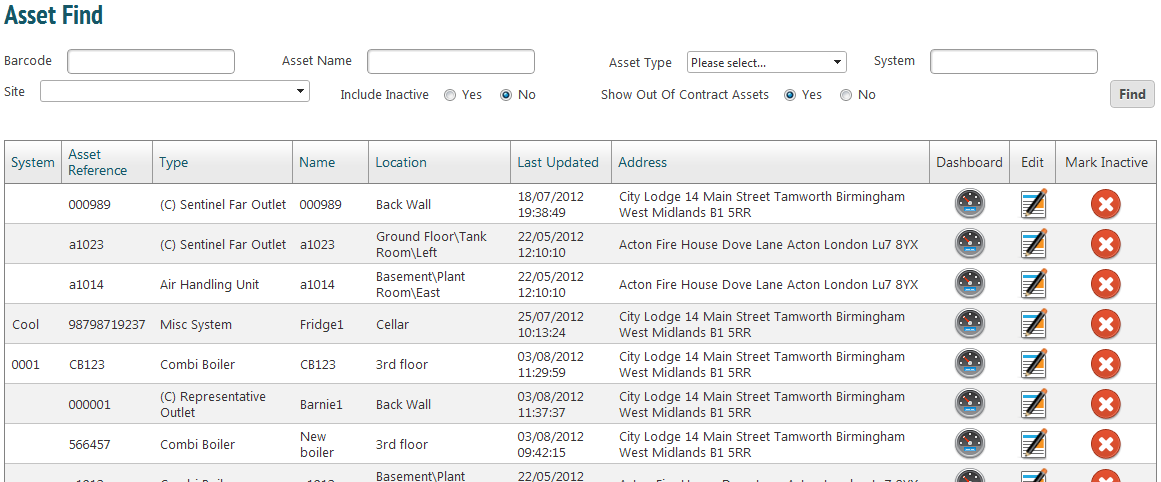
The page will list all assets across all of your clients and their sites. The list is searchable by site, by asset type or by system. Using the asset’s barcode or name (if known) will pull up that specific asset’s information.
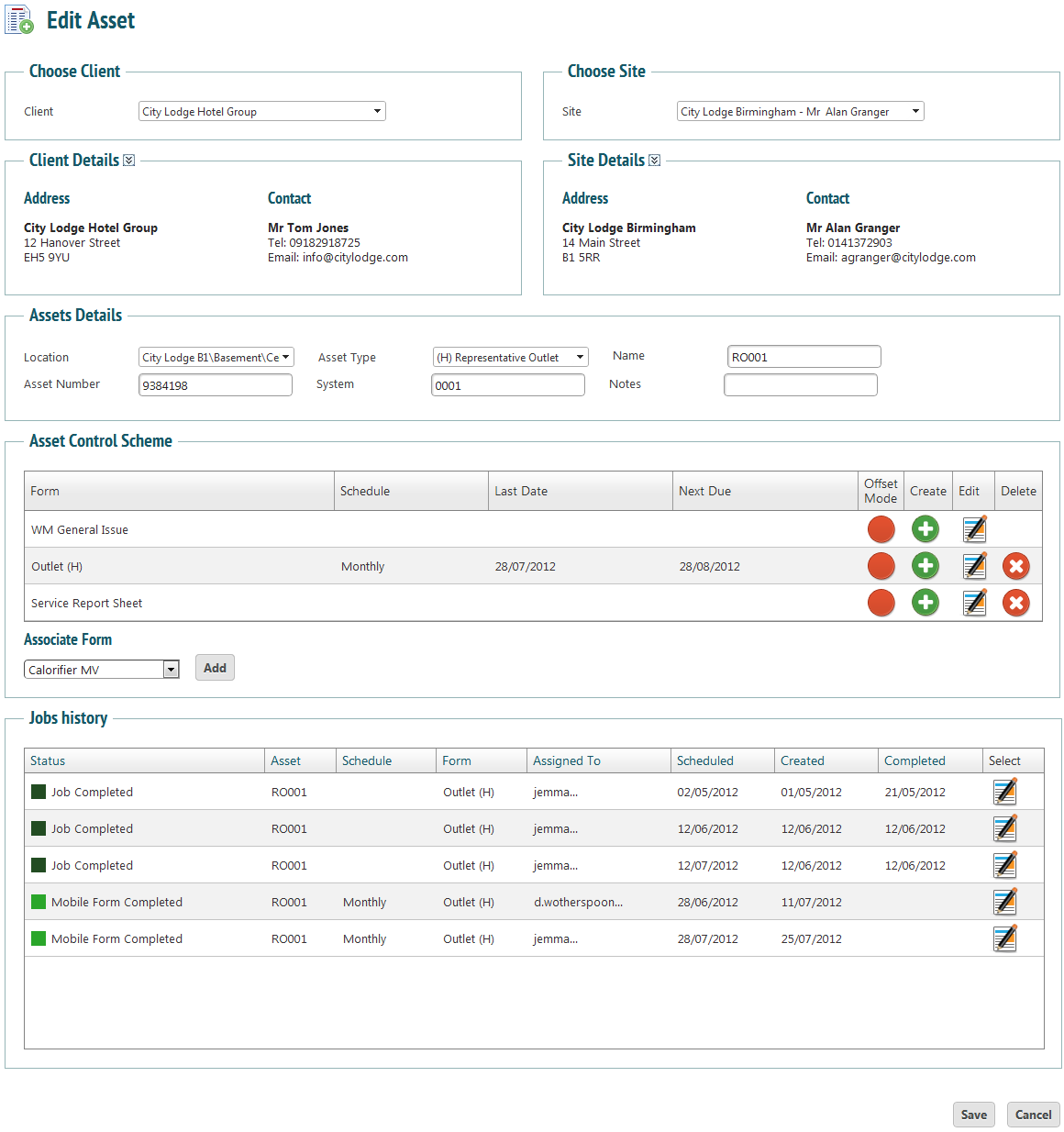
This page will display asset details such as location and type, the control schemes that are associated with the asset and any history if it exists. This is a list of previous jobs that have been done on the asset.
After editing any of the information on this page, remember to press ‘Save’.
Adding a Control Scheme
To add a new control scheme, select a form from the ‘Associate Form’ dropdown menu and click ‘Add’. The form will now appear in the list of Asset Control Schemes. To edit it, click the ‘Edit’ icon.
A new page will open up. Input the name of the control scheme and the schedule.

Offset Mode: if ticked, the next job due date will be adjusted to correlate with the last completed job. This means if a job is scheduled for the 3rd of every month but is completed on the 1st, it will then be scheduled for the 1st of every subsequent month. If it is unticked, the job will always be due by the 3rd, no matter if it is completed on the 1st or the 5th.
Press ‘Save’ to save any changes.