
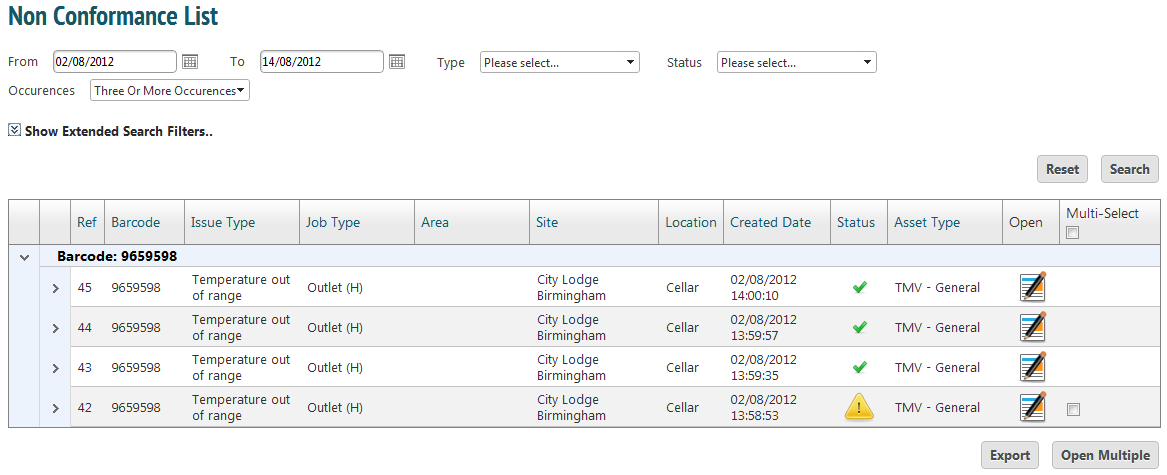
Non compliances can be accessed from the ‘Jobs-Issues’ menu. To begin with, all non compliances across all clients and sites will be listed.
Click ‘Show Extended Search Filters’ and view assets across one specific site or client. There is also the option to view non compliances by type, by status (open or closed) or how many times the asset has been found non compliant.
Details
Press the ‘Open’ icon to see the summary page for that non compliance.
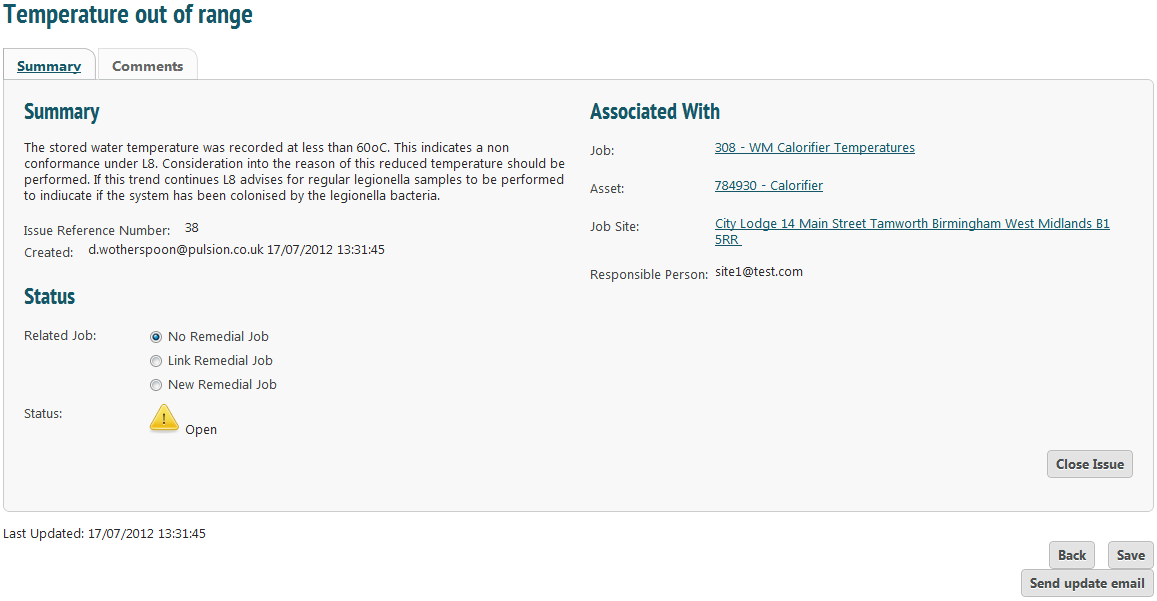
This page will detail what the asset has failed on, which job was being completed and any other information that could be useful such as the job site.
Close Issue
The issue can be closed by clicking the ‘Close Issue’ button.
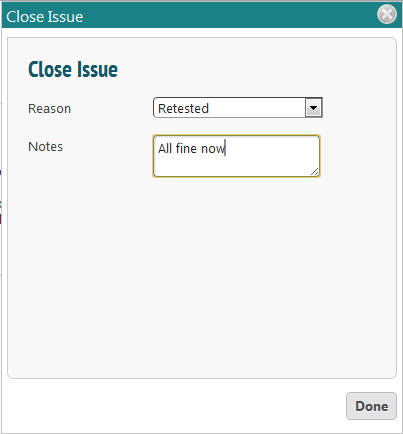
Enter a reason to close the issue and any notes, and press ‘Done’. To complete this, make sure to press ‘Save’ before leaving the summary page.
To close more than one non compliance at the same time, from the Non Conformance List page, select which compliances are to be closed.
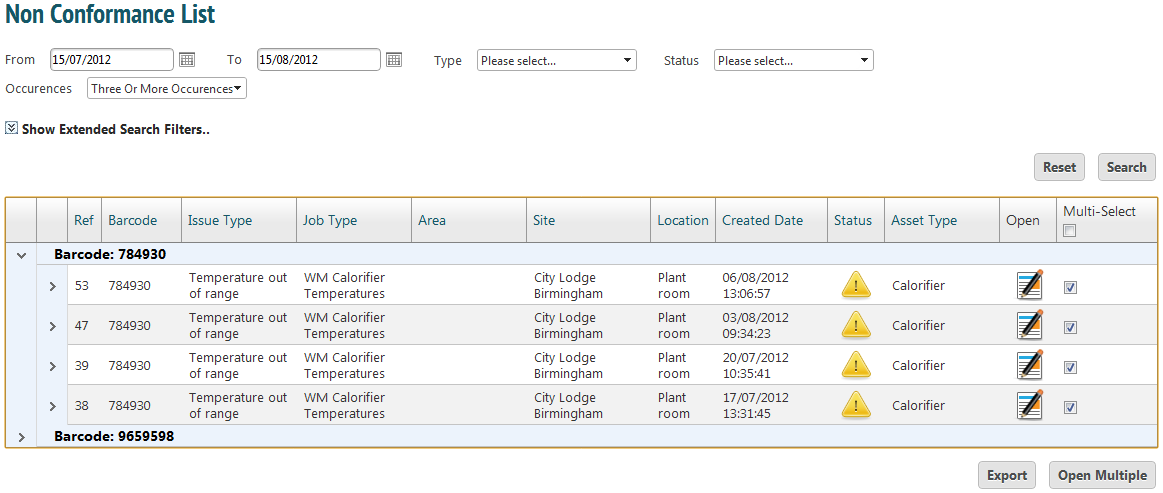
Click ‘Open Multiple’.
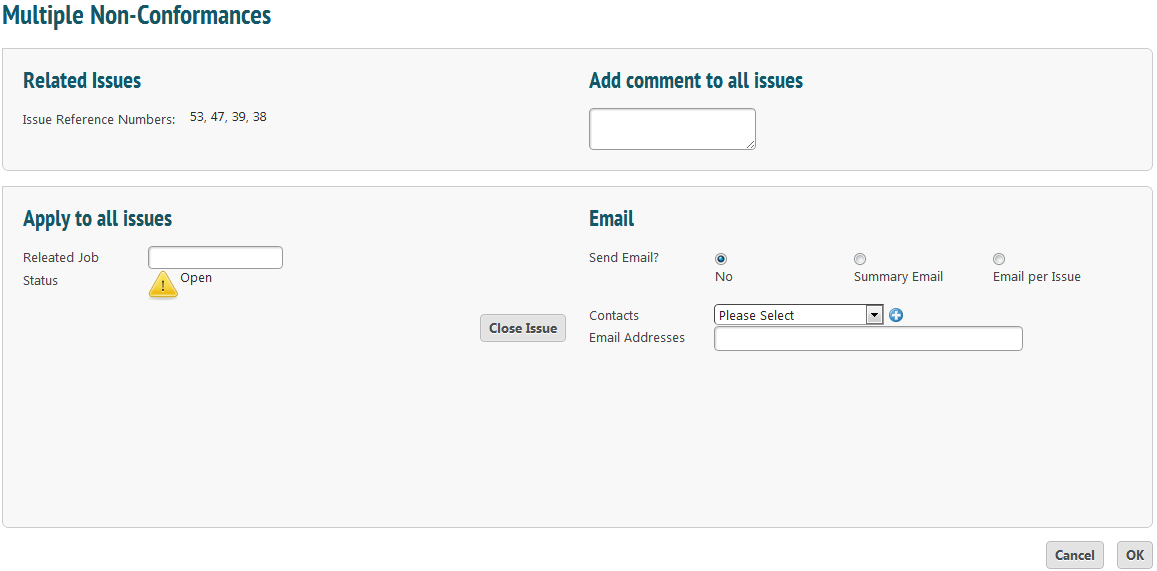
To close all issues, click the ‘Close Issue’ button and continue as you would for a single occurrence.
To send an email, select either ‘Summary Email’ or ‘Email per Issue’. Sending a summary email will send only one email listing changes to all issues while the other option will send an email per issue. This means if there were four non compliances that are now closed, four emails will be sent.
Email Paper Trail
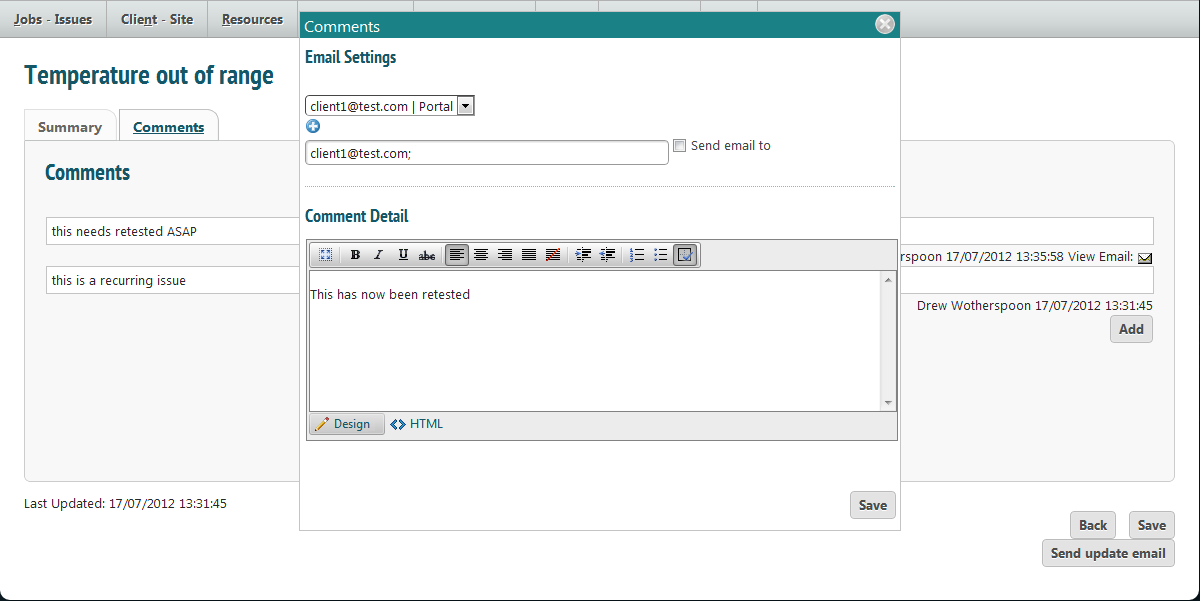
Emails can be sent to responsible persons by clicking the ‘Send Update Email’ button. Any emails that are sent, along with any notes made, can be found in the ‘Comments’ tab. This is the paper trail of all notifications or messages that have been sent, ensuring traceability.
Creating a Remedial Job from a Non Compliance
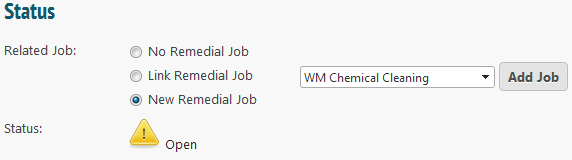
It is possible to create a remedial job from a non compliance. On the summary page select ‘Link Remedial Job’ or ‘New Remedial Job’. To link one, enter the job reference number of the job to be linked.
To add a new one, choose the appropriate form from the drop down menu and click ‘Add Job’.
This will now take you to the ‘Add Job’ page, where you can continue as normal. Allocate a mobile user to complete the task and press ‘Save’, and the job will be allocated out.