Client administration can be selected from the ‘Client-Site’ menu. It displays details such as the company name, contact details and reference number of all clients.
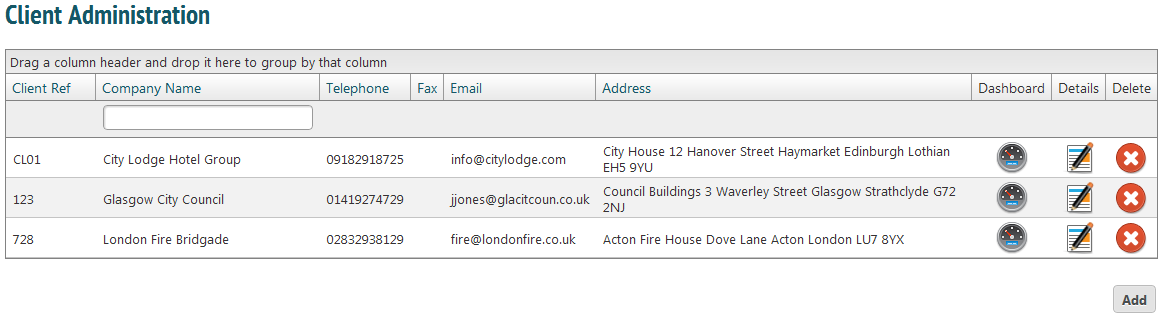
To add a new client, click ‘Add’. Selecting the details icon:  will open up more detailed information for that client.
Details
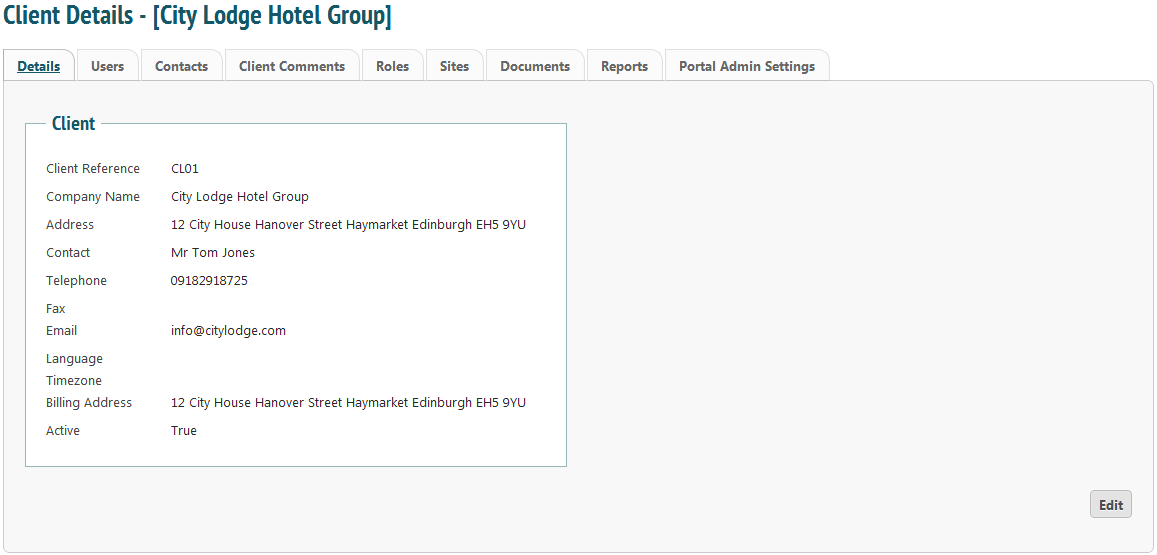
Information about the client is in tabs. The first tab, ‘Details’ gives information such as the main contact and the address of the company. To edit any information, click ‘Edit’ at the bottom.
Users
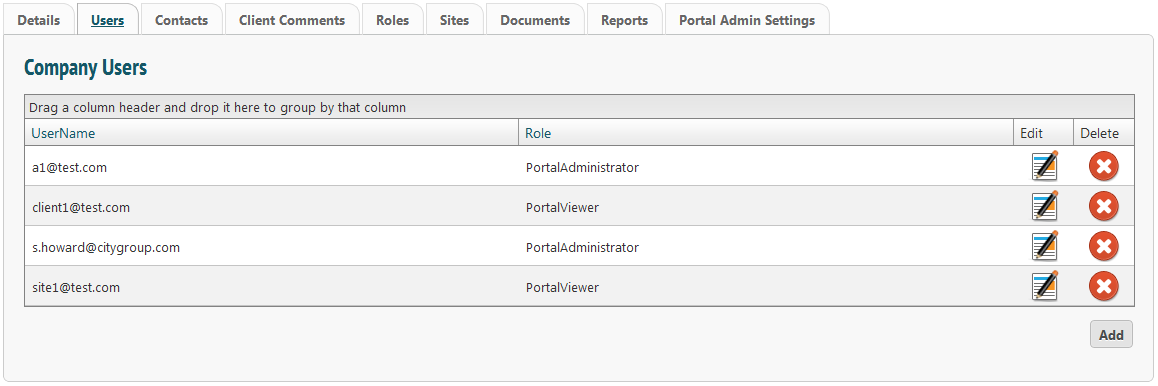
‘Users’ details information of client users and their permission levels. To add users, select ‘Add’. You will only be able to add users as long as your have licences free- this should not become a problem but if you run out of client user licences, get in touch on [email protected]. Edit information by selecting the ‘Edit’ icon.
This will take you to this page:
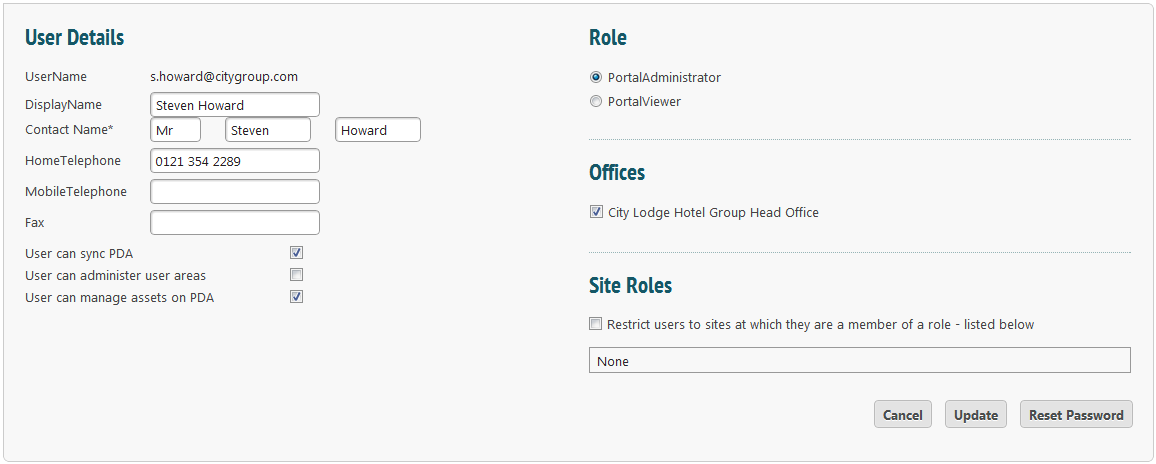
From here, you can edit their permissions levels (PortalAdministrator gives far more flexibility than PortalViewer) as well as any personal information. Click ‘Update’ to save.
To reset a password, click the button and follow instructions.
Contacts
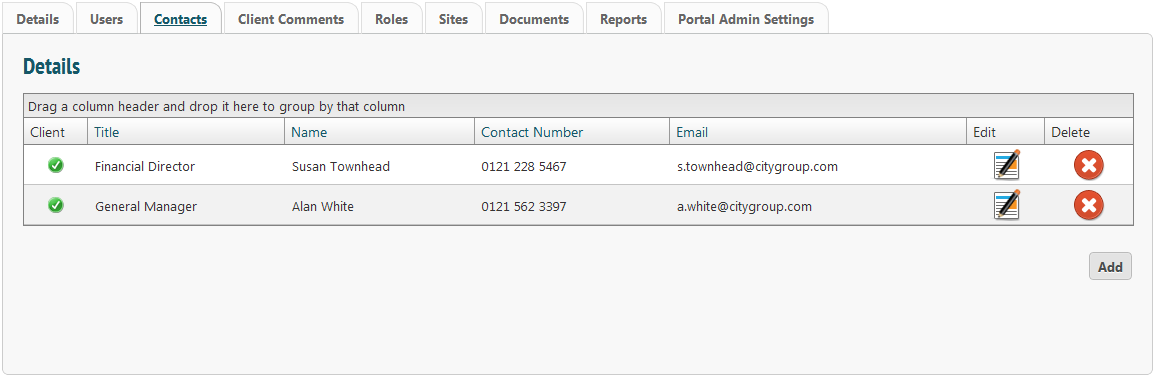
Details of contacts within the company can be found here.
Client Comments
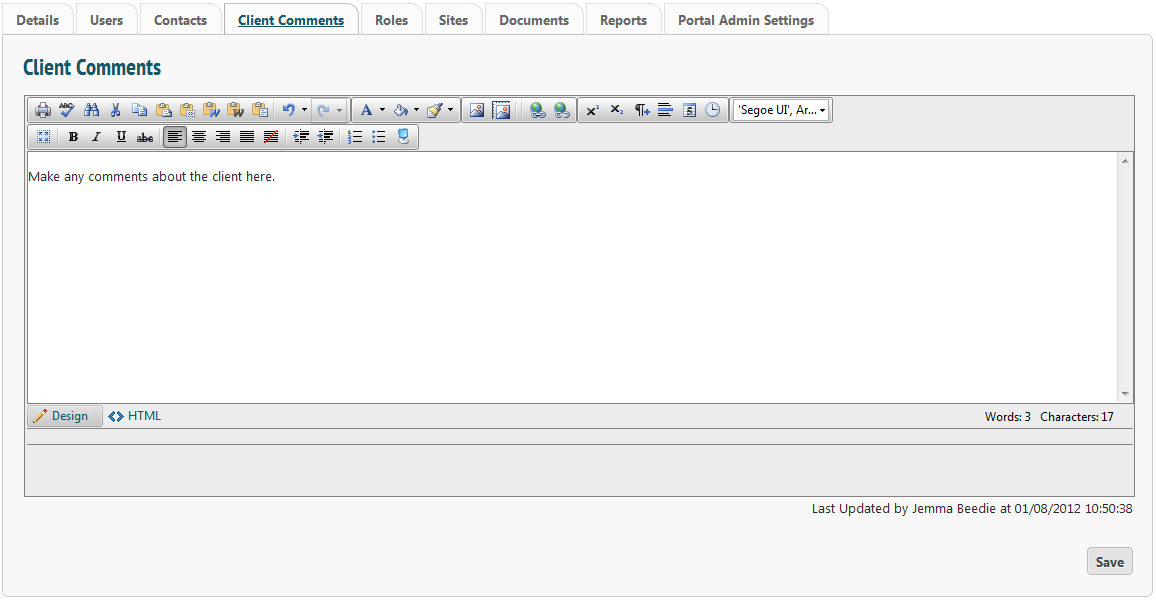
Comments about the client can be made here. Though they will not have access to it, it’s a good idea to keep these comments clean.
Roles
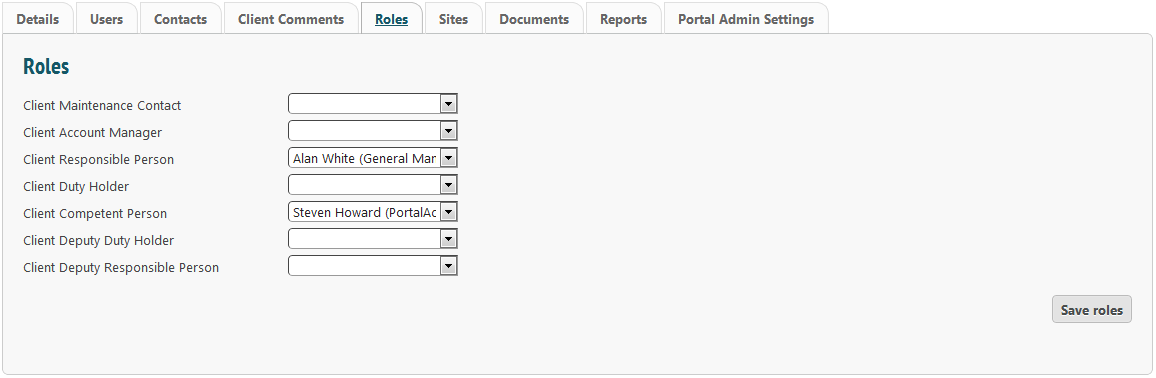
This tab allows you to allocate users to specific roles. This may be useful if a responsible person for a site is different from the responsible person for the client, for example.
Sites
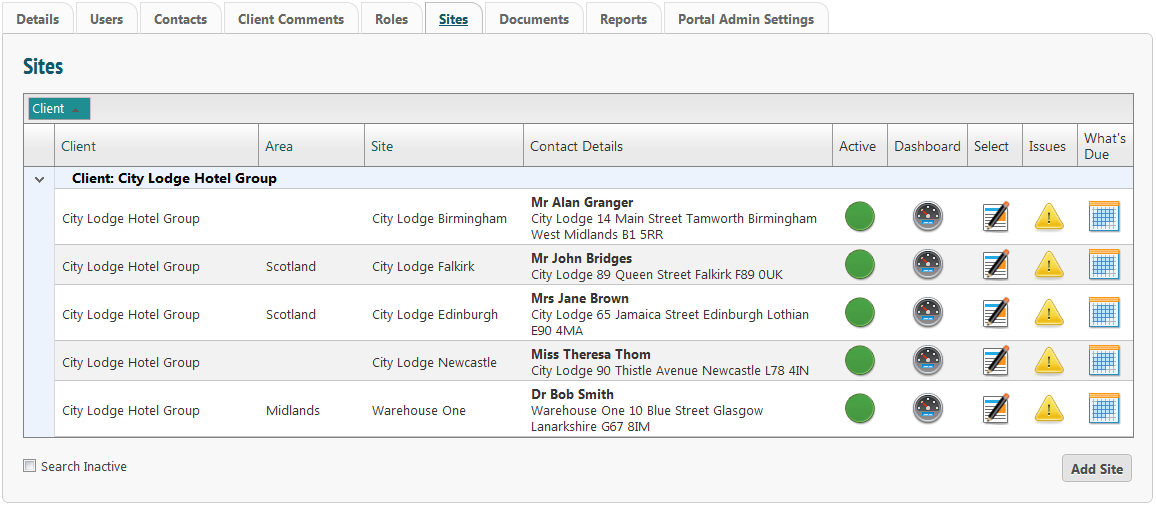
All of the client’s sites will be listed here. There could be just one or there could be 100. The list has full flexibility over searchability.
 Shows whether the site is in use. If not, it will be red.
 Clicking this takes you to the site dashboard.
 Clicking this takes you to the issue log for the site.
Clicking this takes you to the site information.
 Clicking this will show you what tasks are due to be completed at this site.
Documents
In this tab you have the option of uploading documents that you want your company to see, but that you do not want the client to have access to. This could be contracts or similar information. Documents that you wish to give your clients access to should be uploaded in the Document Explorer.
To upload a document click ‘Add’. A popup box will open. Use this to select the document or file from your computer, add any notes to be attached and click ‘Add’.
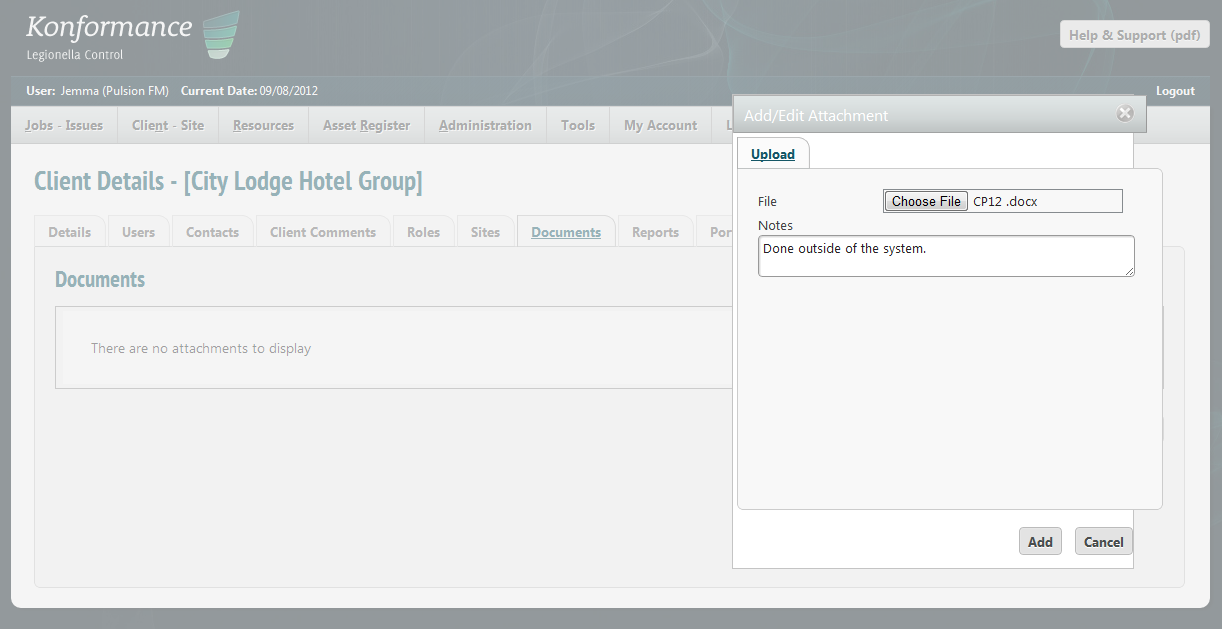
The document will now be associated with that client.
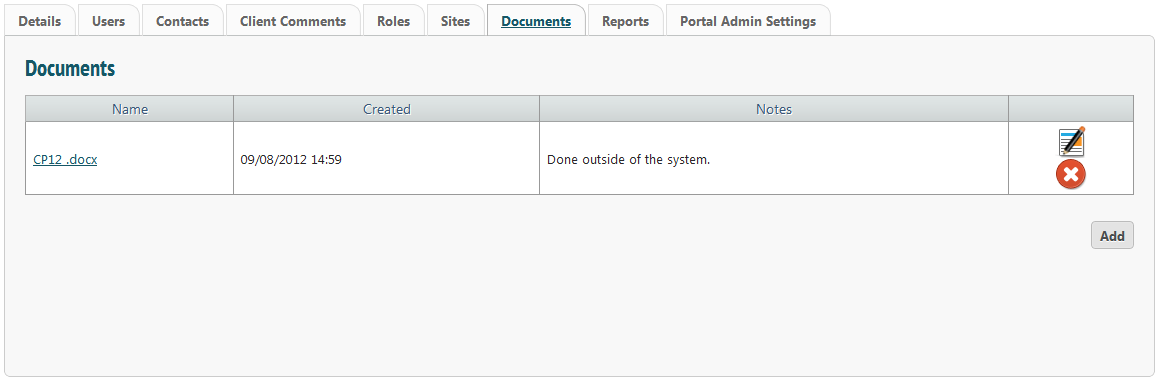
You can edit the notes or replace the document by clicking the ‘Edit’ icon, or delete it by clicking the ‘Delete’ icon.
Reports
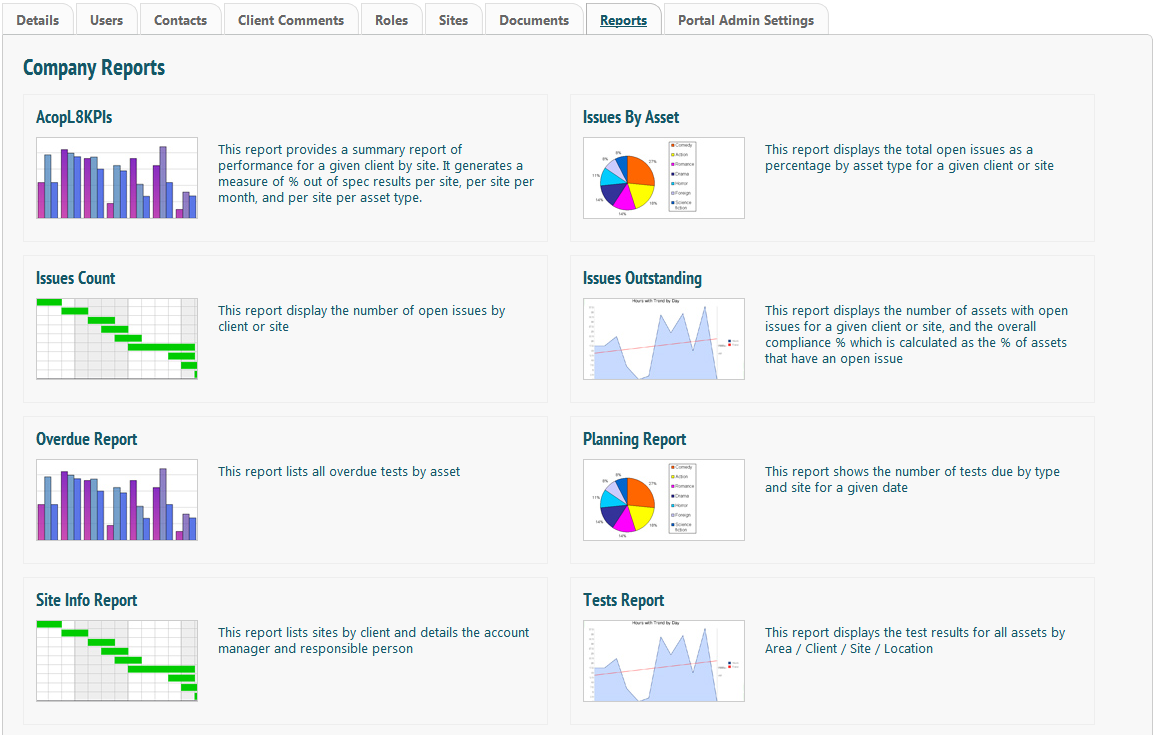
This is a suite of reports that you have access to but your client does not.
Portal Admin Settings
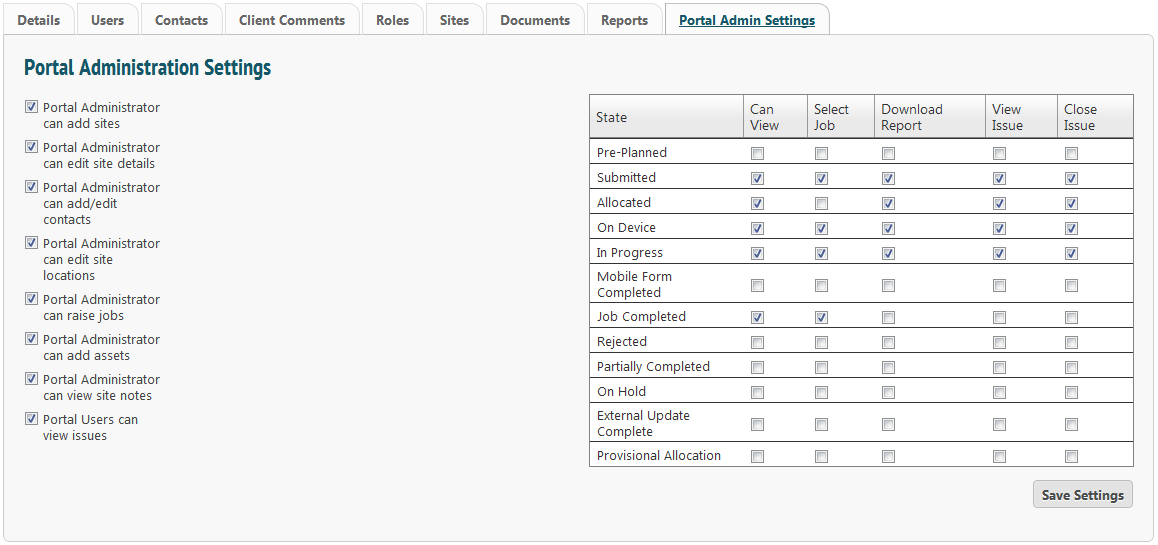
From this page, control what permissions clients have. This is done on a client-by-client basis. You can check what they have access to by using a client’s login details and exploring the system as them.