
New users can be added at any time. To add a new user, hover over the ‘Administration’ button in the top menu. Select ‘Company Details’.
Select ‘Users’ from the tabs displayed. Details of all users within the company can be found here, including their permissions.
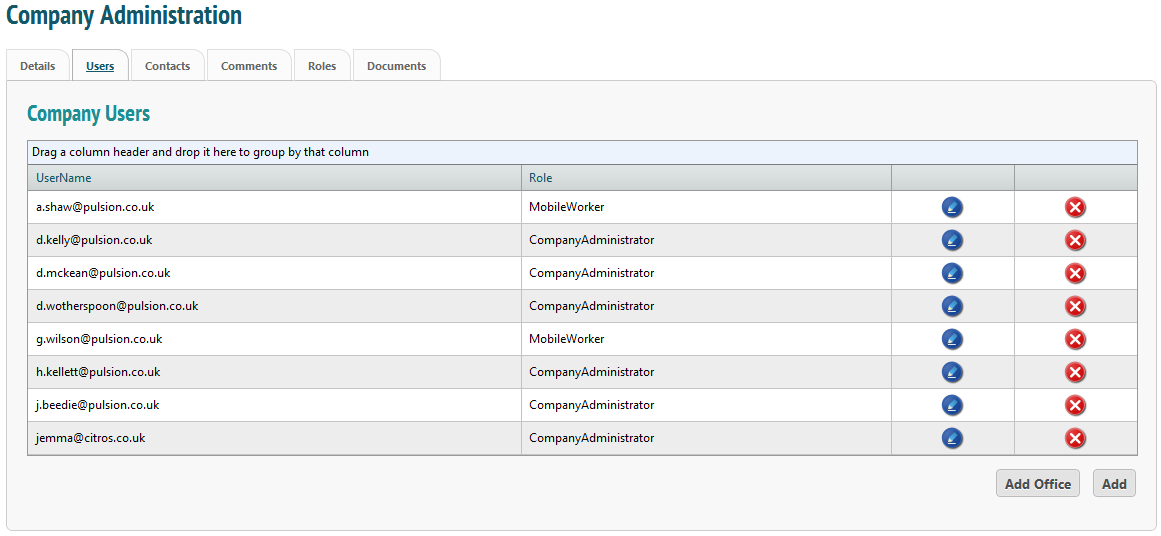
To add a new user, select  .
.
Fill in all required details and select the permission level from the menu.
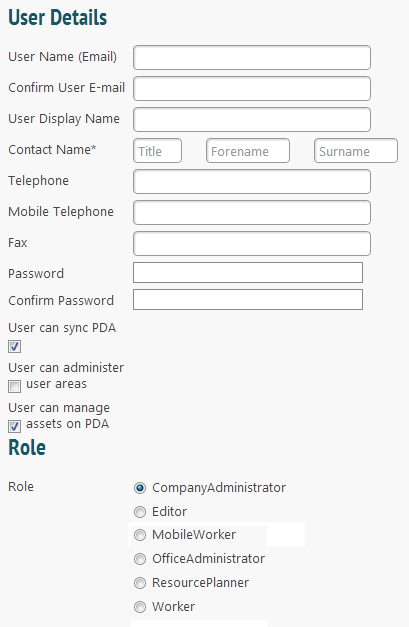
- The user name must be in email format. It is advised that this be the user’s official work email address as this is the address help will be sent to if the user loses their password.
- The display name is what will appear at the top of the screen. This will not be inserted into any documents.
- The contact name is the name that will be inserted into documents, i.e. if the contact is Mr Tom Jones then this can appear in a document: “This risk assessment was carried out by Tom Jones.”
- There is no requirement to enter a fax or telephone number but this is a good way to keep track of individual contact numbers.
- Insert a password. The user can log on to the web system to change this later. The password must contain one capital letter and one number.
- If the user will not have access to a mobile device at all the next boxes can be unchecked if desired, though this is not recommended.
- The ‘Roles’ are listed in order of level of permission. A Company Administrator has access to all aspects of the system. A Mobile Worker will not be able to log on to the web system, they will only be able to log on to the mobile app. This can be useful, for example, when giving contractors a login for completing jobs on a mobile device. A Worker has very limited access to the system.
When you are finished, press the ‘Add User’ button at the bottom of the screen.